Minimal Note Guide
A note can hold a paragraph, a flowchart, a task board, an equation — and it's still a Markdown file you can export.
Everything lives in your browser. No account needed to start.
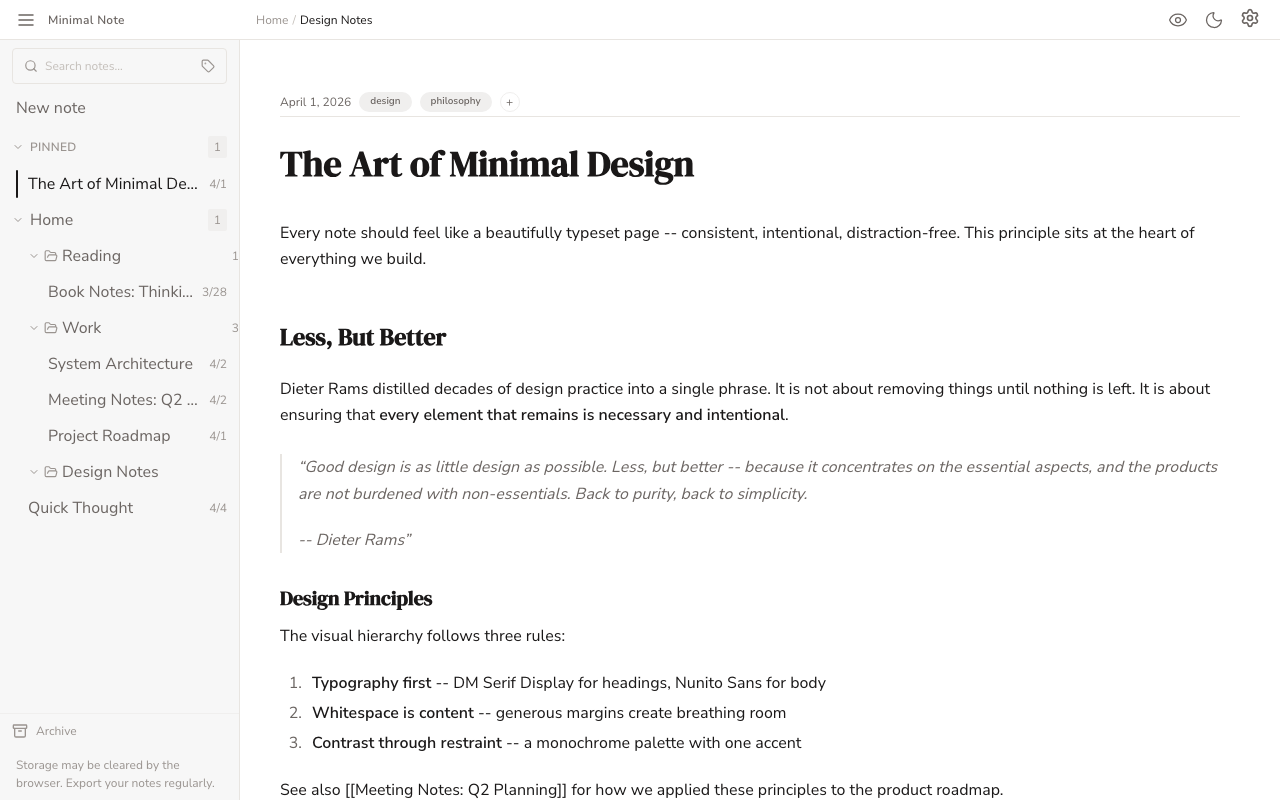
Start here
- Open the app — notes are saved in this browser as you type. Editor →
- Write in Markdown, and press ⌘E / Ctrl+E to switch between editing and reading. Editor →
- Type / to insert a block — a diagram, a task board, an equation. Mermaid →
- Type [[ to link another note; backlinks and tags connect the rest. Wiki Links →
What a note can hold
…and all of it is still text.
Diagrams from text
Write a few lines in a mermaid or d2 code block and the note draws it.
Here is how your notes move:
flowchart LR
  You[You] --> Browser[This browser]
  Browser --> Export[Markdown export]
  Browser -.->|encrypted sync| Devices[Your other devices]
  Browser -.->|team space| Team[Your team]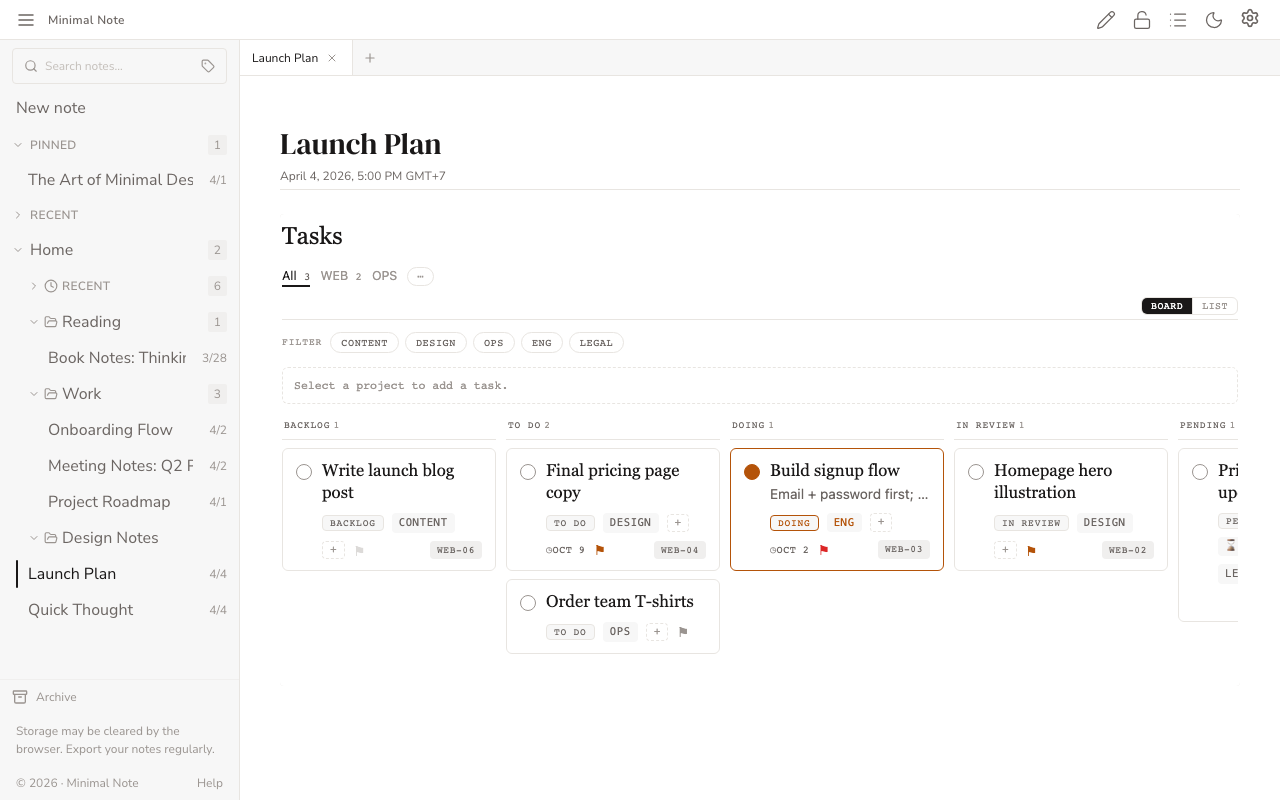
Task boards
A full board inside a note — columns, projects, due dates — and every change is saved back as plain text.
Math and typeset pages
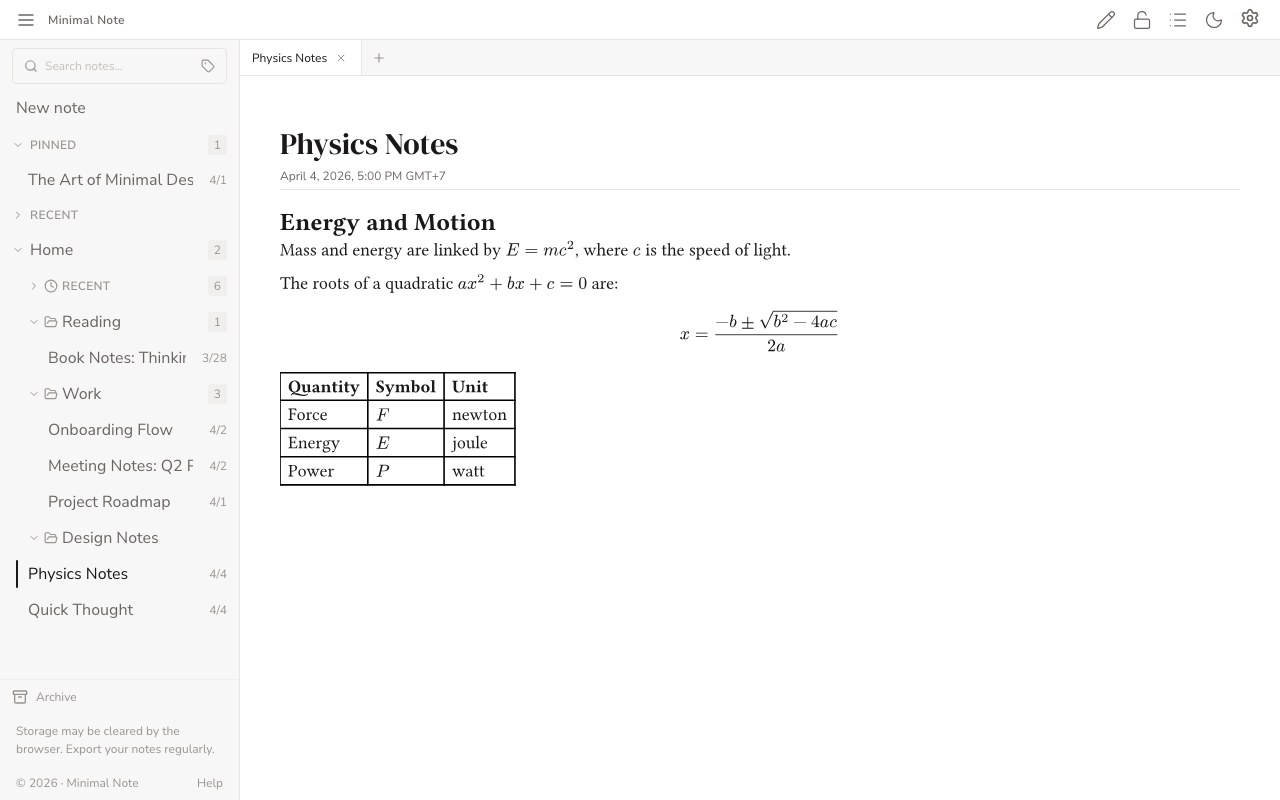
A few lines of Typst become equations and tables, right in the note — the source stays text.
Drawings, beside your notes
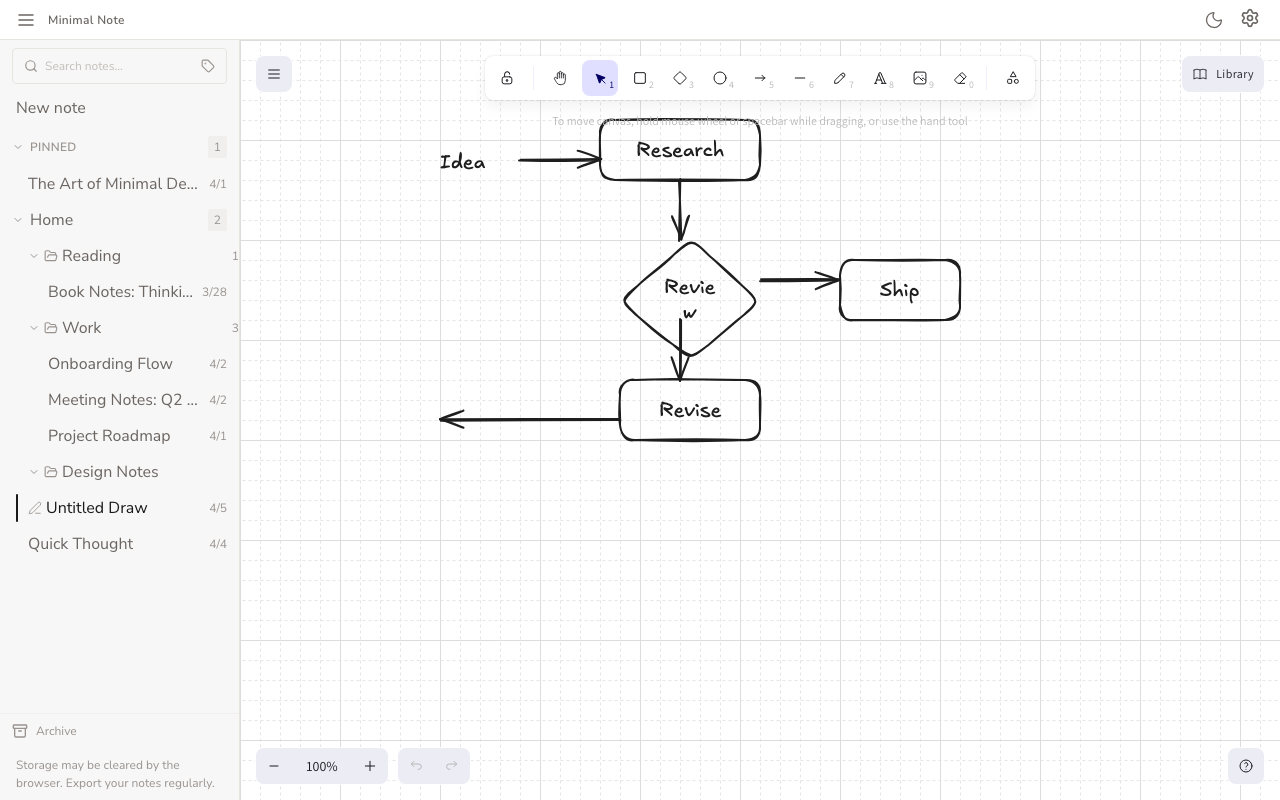
Sketch diagrams and wireframes on an Excalidraw canvas that lives in the same sidebar as your notes.
Your data, your way
Wiki-links, backlinks and tags connect your notes. Export your notes as plain Markdown (drawings as .excalidraw files), look back through version history, and let scripts or an AI assistant read and write notes through the Notes API. Sync, available when it's enabled for your account, keeps notes the same on every device — end-to-end encrypted.
All guides
Core
- Editor Write Markdown and see it formatted as you type, in three viewing modes.
- Folders Folders give your notes a physical sense of place.
- Search Minimal Note gives you two ways to find what you're looking for.
- Command Palette The command palette is the fastest way to navigate Minimal Note.
- Settings The settings panel gives you control over how Minimal Note looks, feels, and stores your work.
Advanced
- Formatting Toolbar The formatting toolbar puts every common markdown action one click away.
- Wiki Links Wiki links connect your notes into a web of ideas.
- Backlinks Backlinks show you which notes link to the one you're reading.
- Tags Tags let you categorize and filter your notes without rigid folder hierarchies.
- Sharing Share any note with a single action.
- Tabs, Split View & Floating Windows Keep several notes open in tabs, side by side, or in floating windows.
Rich Blocks
- Mermaid Mermaid diagrams let you create flowcharts, sequence diagrams, and other visuals directly inside your notes — no external tools needed.
- D2 Diagrams D2 is a declarative diagramming language that lets you describe diagrams as simple text — nodes, edges, and labels — and see them rendered as clean SVGs inside your notes.
- Excalidraw Minimal Note includes a full Excalidraw drawing canvas alongside your markdown notes.
- Typst Typst blocks turn a few lines of plain text into a typeset page with headings, math, and tables, right inside your note.
- Htmlview HTML blocks let you put your own HTML (a styled card, a small layout, a formatted table) inside a note and see it rendered in view mode.
- Taskview A task board puts a full to-do board inside a note: columns for each stage of work, projects, priorities, due dates, tags, and comments.
Teams
- Teams Getting Started A team is a shared space for notes that a group of people write and read together.
- Teams Collaboration Team notes let you choose exactly who reads your work and when.
- Teams Administration Team admins decide who belongs to a team and what they can do.
Sync & Account
- Account & Sign-in Sign in only for the features that need it, such as teams and (where enabled for your account) sync.
- Sync Sync keeps your personal notes the same on every device you sign in to.
- Notes API & MCP The Notes API lets something outside the app work with your notes.
- Backup: Export & Import Export your notes as plain Markdown files and bring them back in one step.
Your Data
- Archive Archiving takes a note out of your sidebar without deleting it right away.
- Version History Minimal Note quietly keeps earlier versions of each note as you write.
- Statistics Statistics gives you a calm overview of your notes: how many you have, how they connect, where they live, and which ones could use attention.
Niche
- PWA (Progressive Web App) Minimal Note is a Progressive Web App — you can install it to your desktop or home screen and use it exactly like a native application.
- Zen Mode Zen mode strips everything away except your words.